The 'Garage' section in your personal account
The Garage is your personal, interactive car management hub. This section is designed to make searching for spare parts, maintaining vehicles, and purchasing components as simple and quick as possible. Your entire experience on the website revolves around your vehicle. The Garage feature guides you through every step of the journey – from selecting compatible parts to keeping your car in top working condition.
Key benefits and features of the Garage
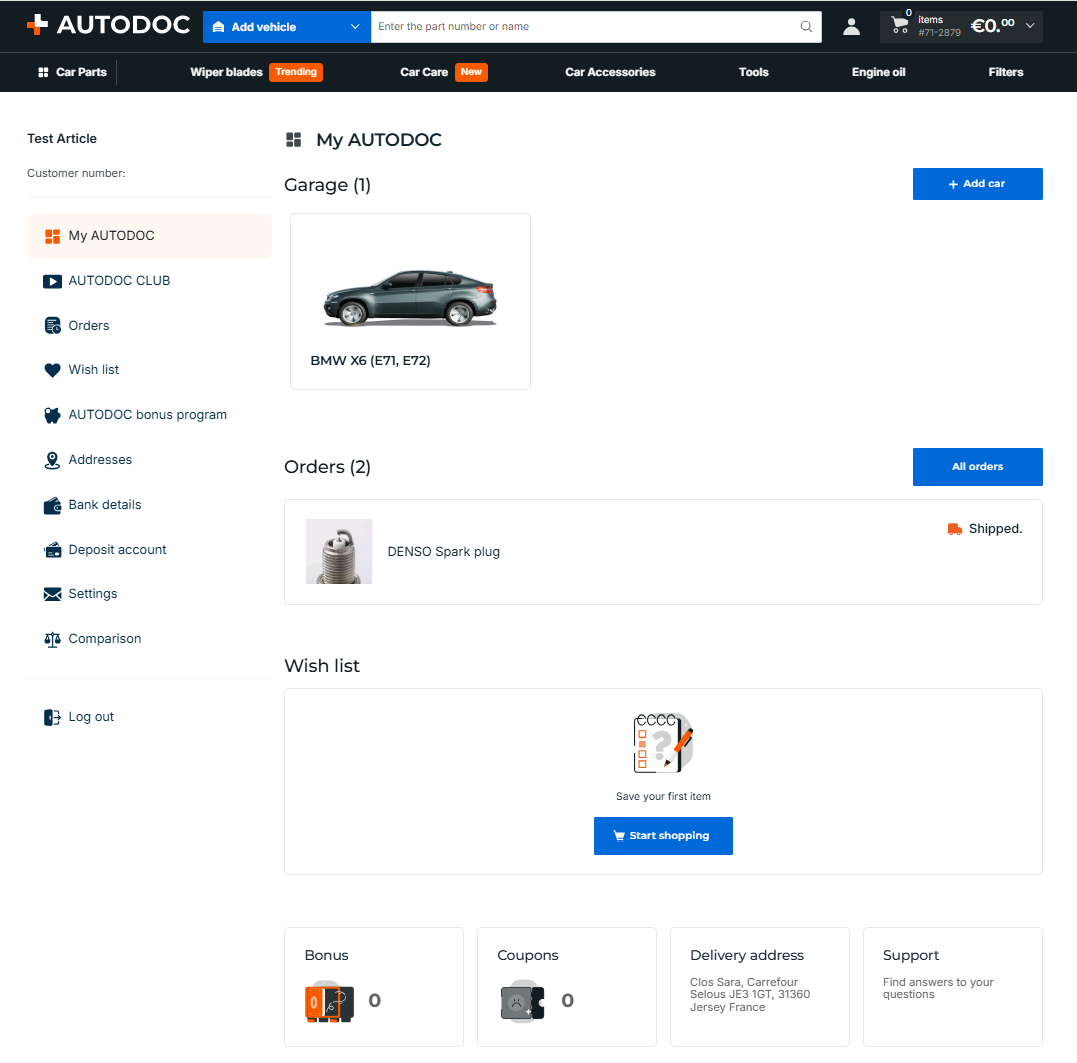
- Car-centric dashboard. The main page of your personal account is fully tailored to your primary vehicle. You no longer need to enter your car details every time you search, as the system automatically displays products, categories, and offers that match your specific vehicle.
- Dedicated car page & vehicle hub. This is a single digital hub for every vehicle in your profile.Here you will find:
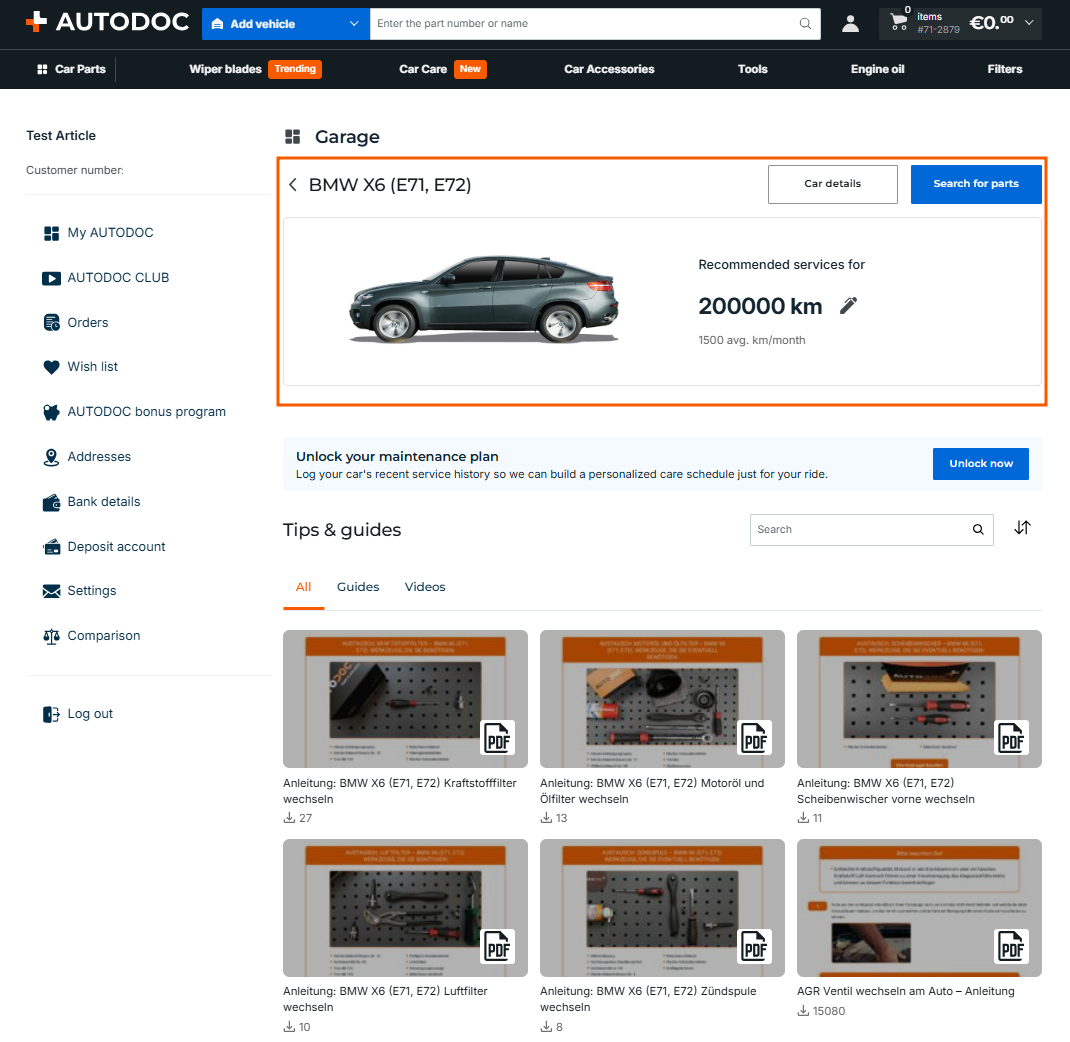
- detailed technical specifications of your car
- quick access to the catalogue of compatible spare parts
- your maintenance history
- detailed technical specifications of your car
- Maintenance tracker. Keep your vehicle running smoothly with our smart tracking system. We will track your services and remind you when they are due:
- Add mileage: keep your odometer reading updated to ensure your maintenance plan stays highly accurate.
- Let's start! (personalised care schedule): click this button to log your car's recent service history. Based on this data, the system will build a customised maintenance schedule tailored specifically to your vehicle.
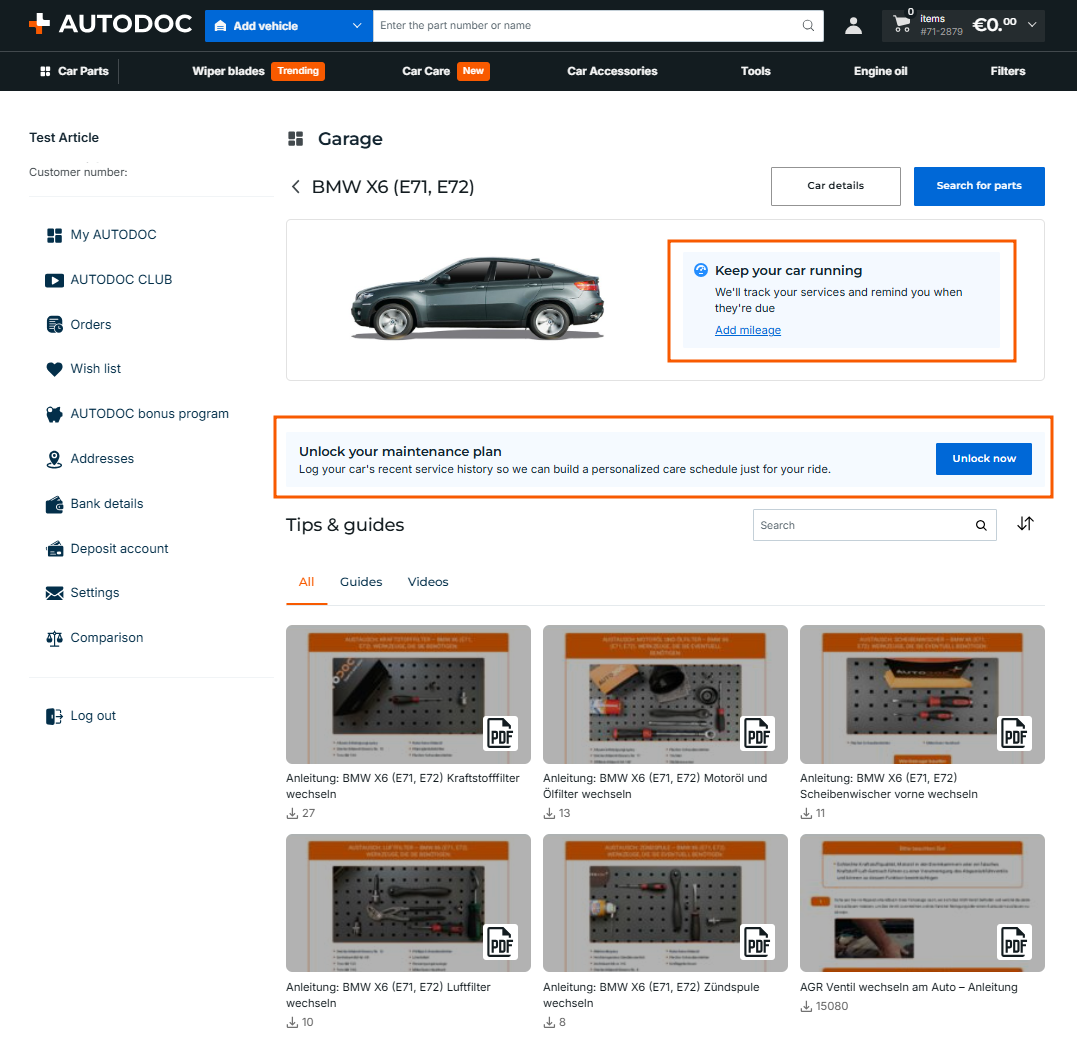
- Add mileage: keep your odometer reading updated to ensure your maintenance plan stays highly accurate.
- Item-level order history. No more searching through old order archives for a specific part. Your order history is broken down into individual parts, allowing you to see exactly which components were purchased for each vehicle in your Garage and when.
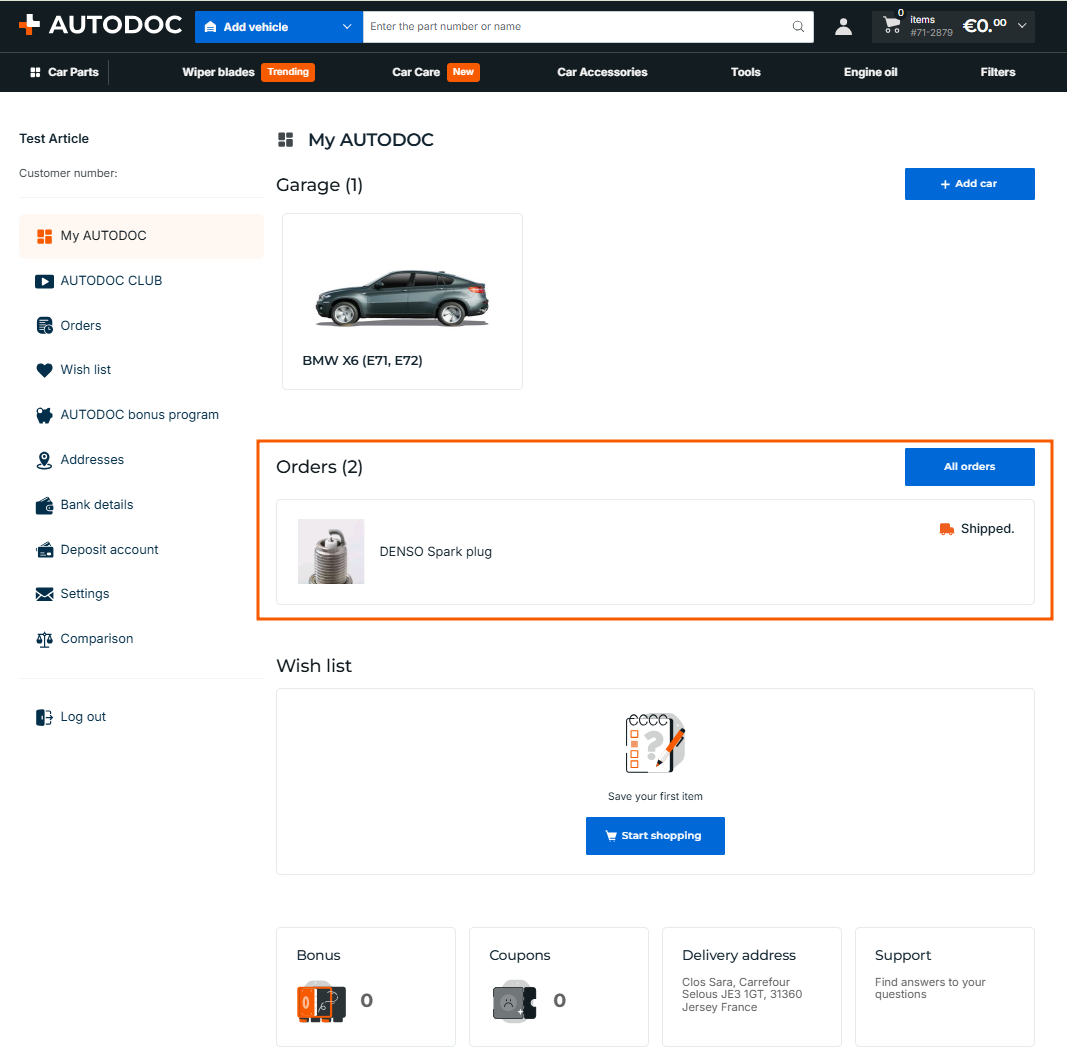
- Tips, guides & useful content. Access helpful DIY content and expert recommendations tailored specifically to your vehicle model. Use the following tabs to quickly filter your content:
- All: displays a complete list of available materials, tips, and recommendations that appear as you shop.
- Guides: step-by-step video tutorials and detailed PDF repair manuals explaining how to replace parts.
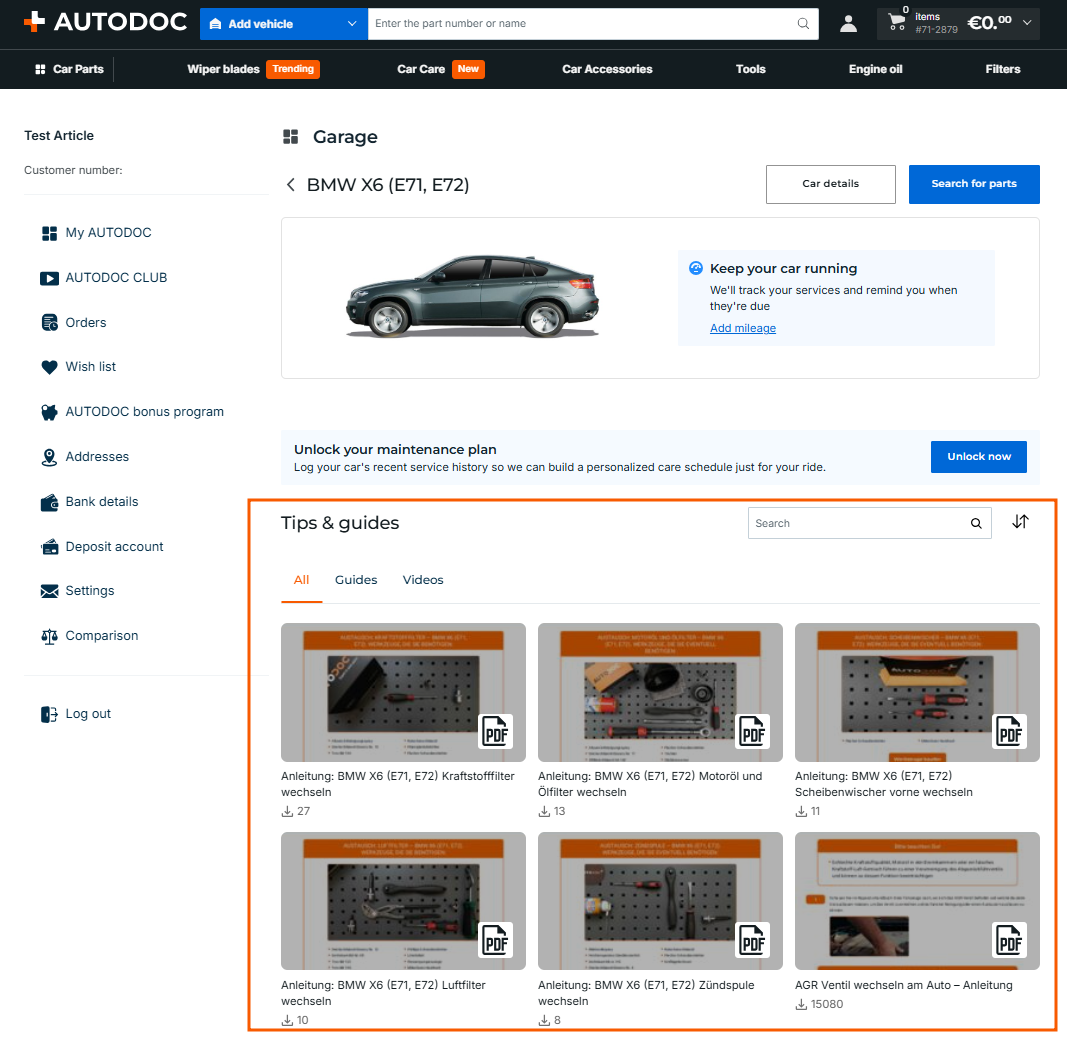
- All: displays a complete list of available materials, tips, and recommendations that appear as you shop.
Managing your Garage
How to add a vehicle
You can add cars, trucks, and motorcycles to your Garage.
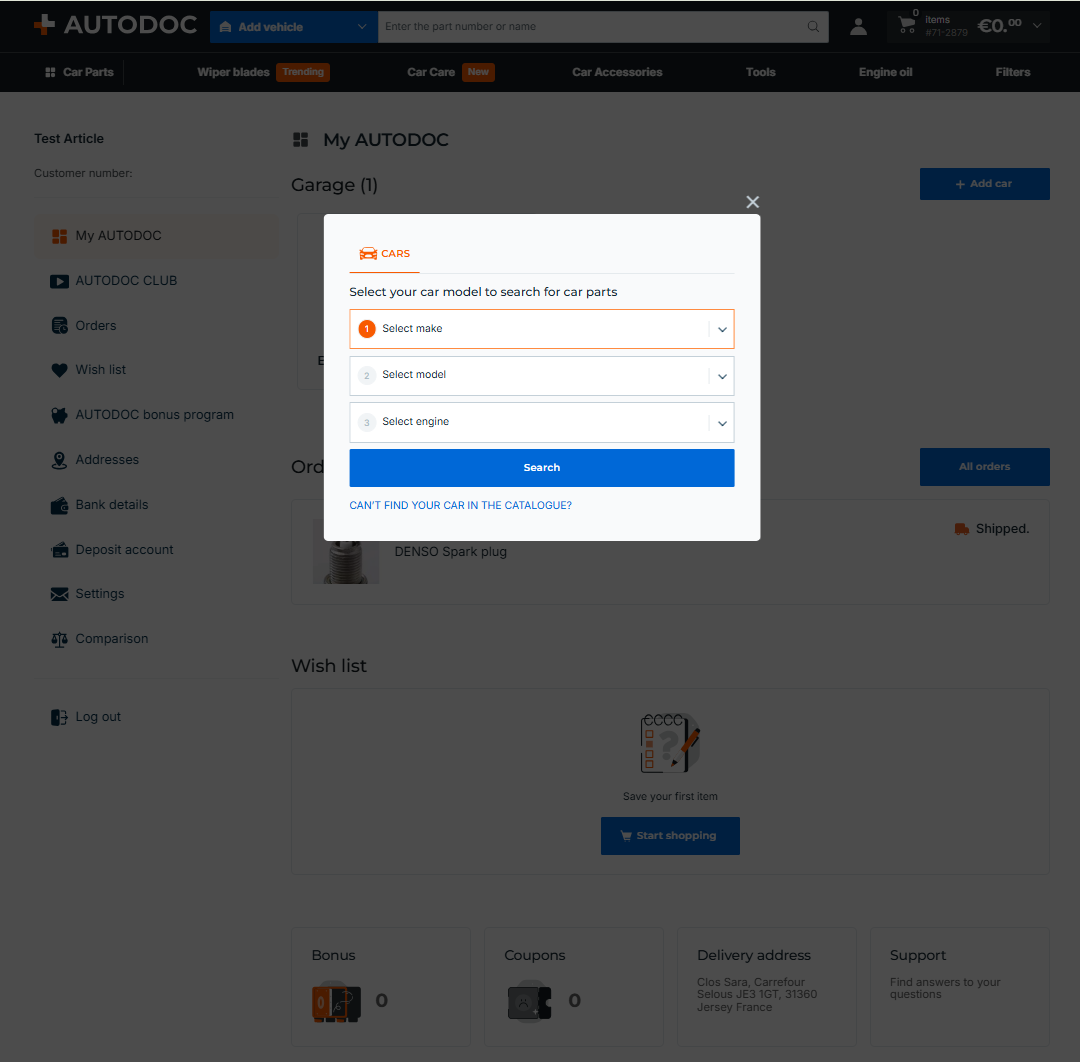
If your Garage is empty, select your vehicle details (make, model, engine modification) using the selector tool and click Search. The vehicle will immediately be added to your list. 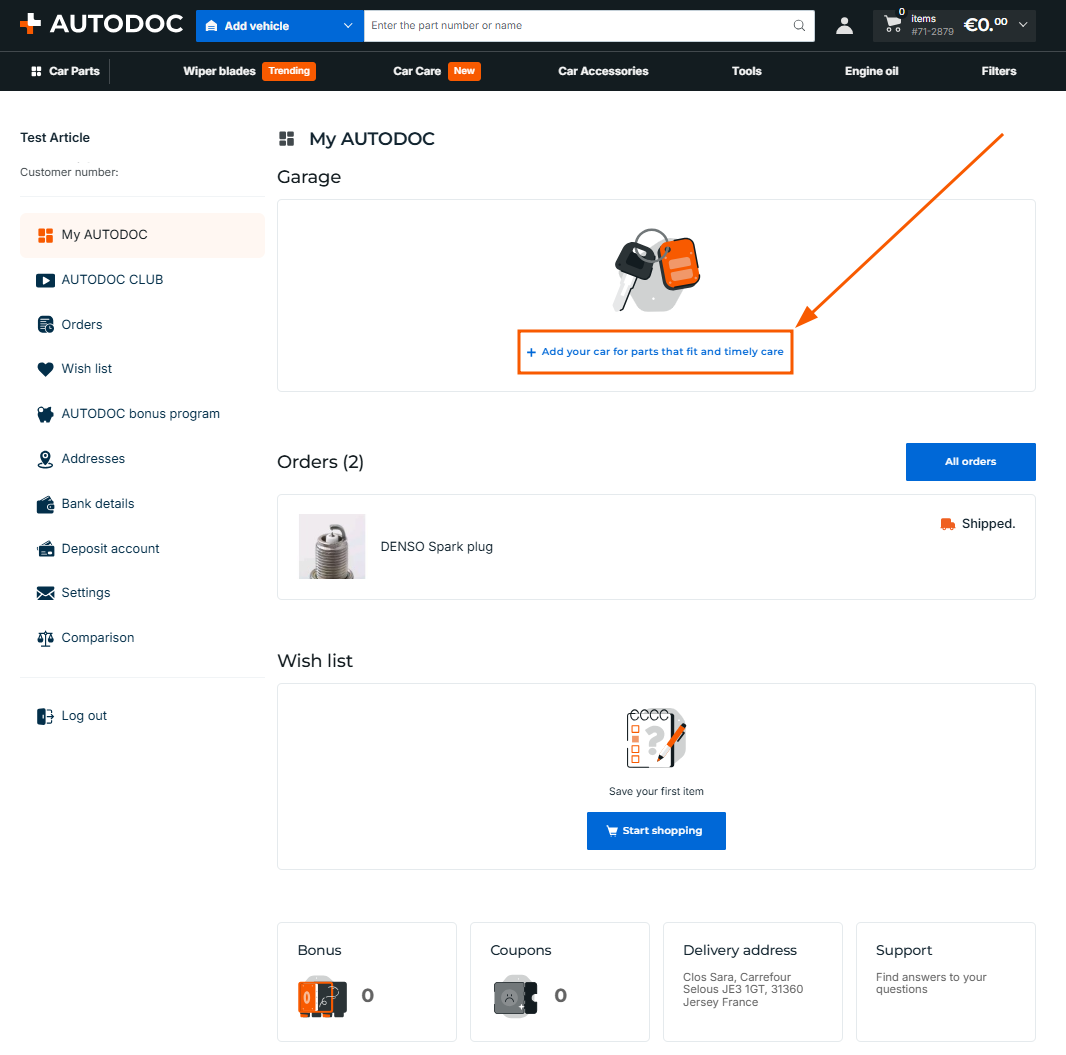
Choose another car by clicking on Add car and then click Search. It will immediately be added to your list. 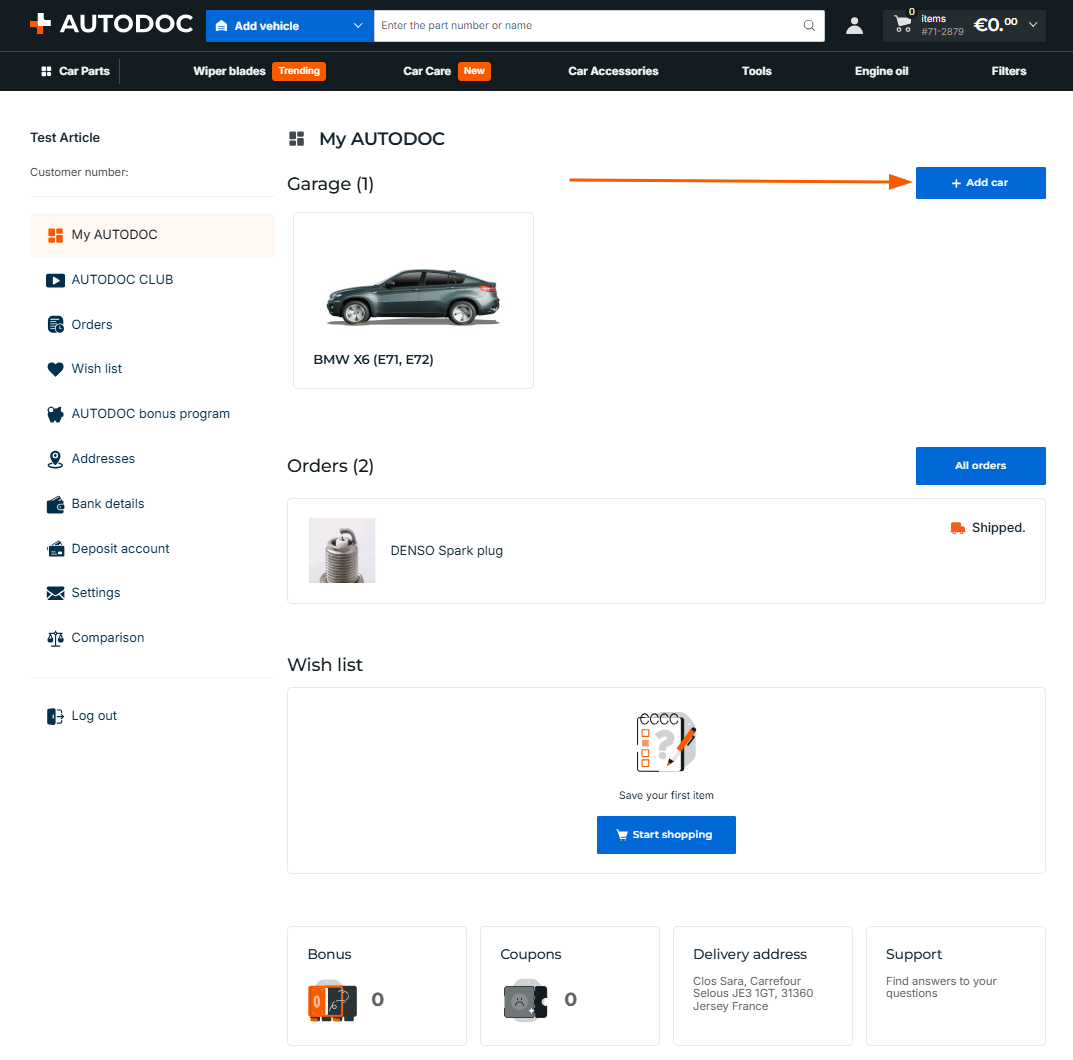
Managing vehicle profiles
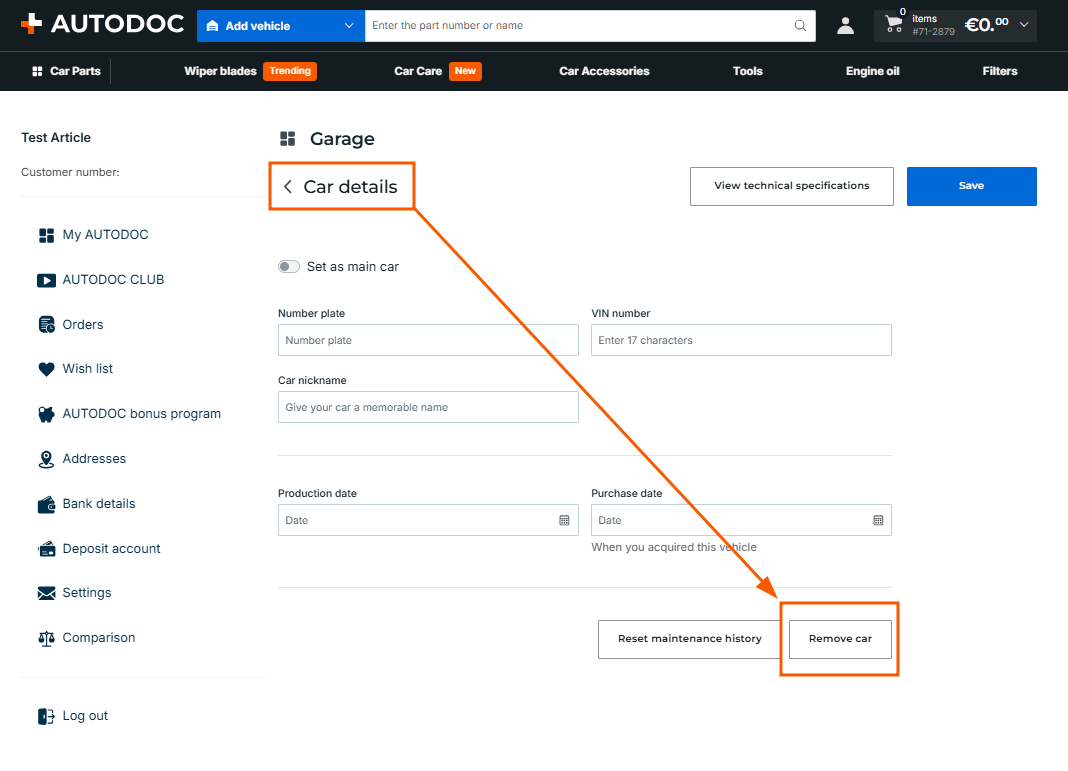
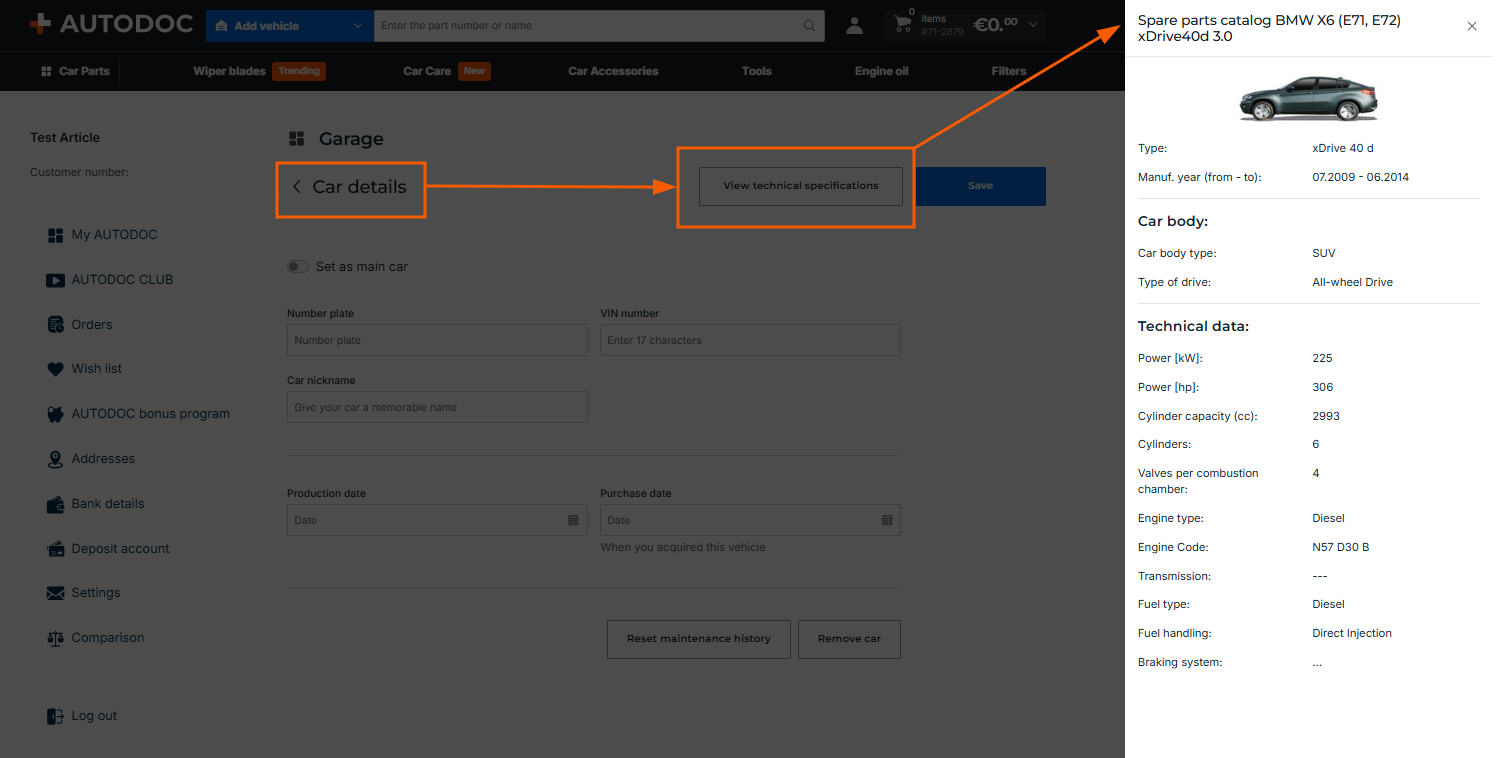
The Car details section allows you to view the detailed technical specifications of your vehicle and customise its profile. Please note that filling out the profile fields is entirely optional. You only need to enter the information you find useful. 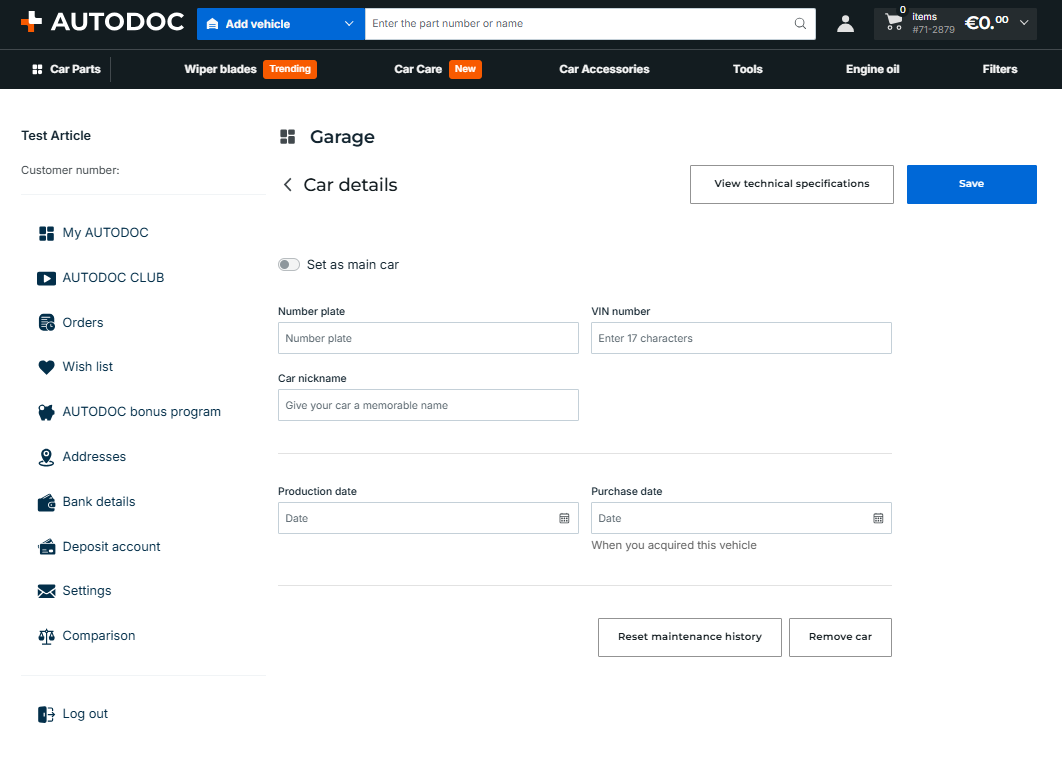
- View technical specifications: access the complete engineering and technical data of your specific vehicle model.
- Set as main car: click this button to set the vehicle as your primary one for search filters. The website interface, catalogues, and product recommendations will default to it.
- Number plate: save your number plate for quick results.
- VIN number: save your VIN to ensure extremely accurate part matches.
- Car nickname: give your car a personalised name (e.g., "Main Car" or "Family SUV") to easily find it in your list.
- Production date: the manufacturing date of your vehicle.
- Purchase date (when you acquired this vehicle): specify when you bought the vehicle to help the system plan maintenance schedules.
- Remove car: you can easily delete the vehicle from your Garage if you no longer own or use it.
- Save: click this button to apply and save any changes.
How to edit or update vehicle details
If you need to edit the basic model details of an already saved vehicle:
- Go to the dedicated page of the vehicle in your Garage.
- Click the Car details button.
- Make your changes and click Save.
How to remove a vehicle
If you want to delete a vehicle from your list, follow these steps:
- Select the vehicle from your list of cars in the Garage and click on it
- Go to the Car details section
- Scroll to the bottom and click the Remove car button.